
HubSpot prospecting
How do you test repeat prospects in HubSpot?
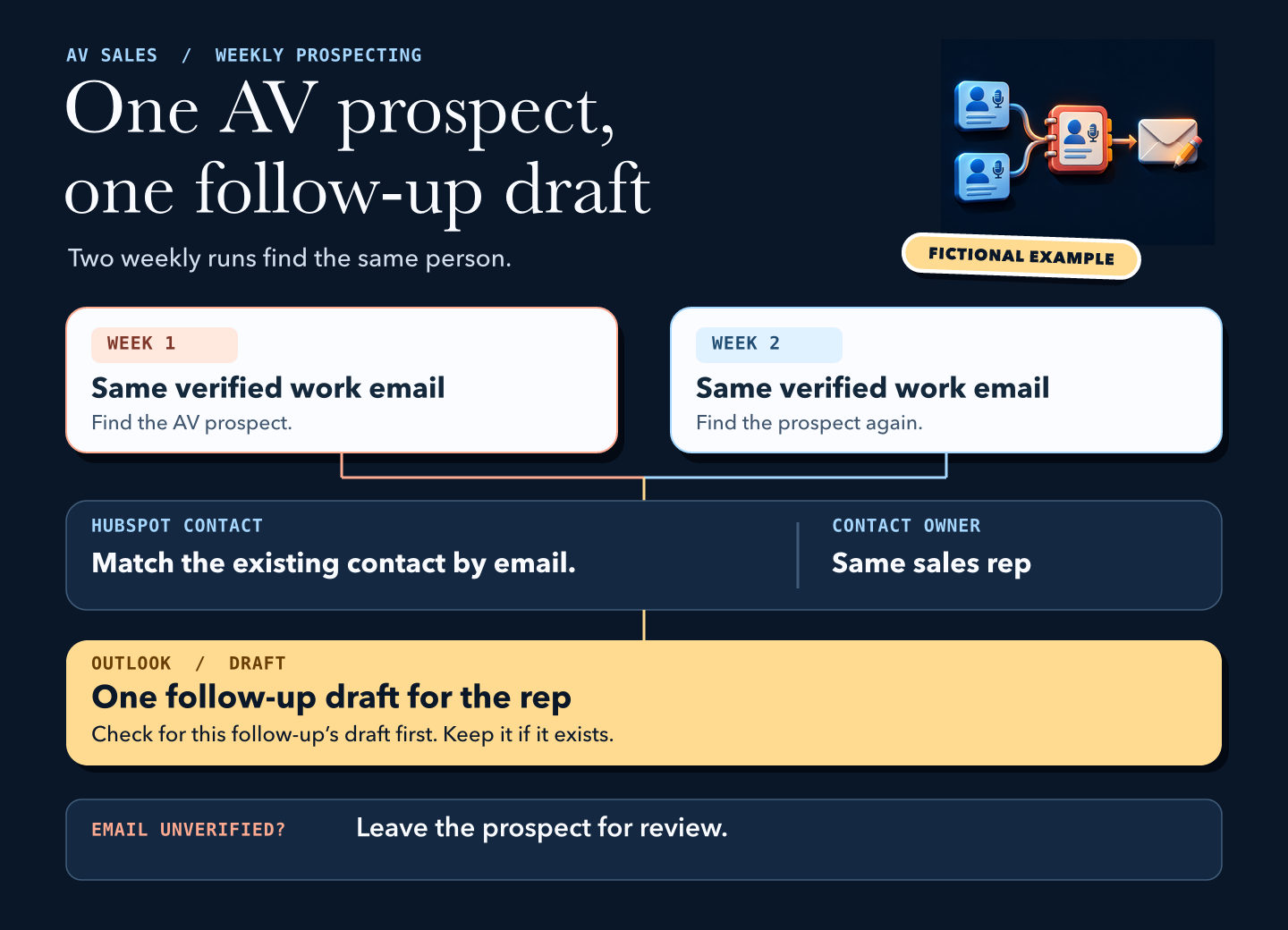
Run the same sample prospect through your workflow twice. Both runs should use the same HubSpot contact and owner, with one follow-up draft in Outlook.
Run the same prospect through twice
This example assumes a prospecting workflow that looks up contacts in HubSpot and saves drafts in Outlook. Use a sample contact and a mailbox your team uses for testing.
- Pick one sample buyer. Choose a person who fits the role and company filters your team uses, such as an AV buyer at a venue. In HubSpot, open CRM > Contacts and note the sample contact’s Email and Contact owner.
- Match the email before adding a contact. Set your workflow to look up the verified work email first. If it finds the sample contact, use that record and keep the owner. If the address is missing, shared or uncertain, leave the prospect for the rep to check.
- Check both runs. Have the workflow keep any draft it already made for this contact in the current outreach round. Start a round with no draft for the sample contact. In Outlook’s Drafts, check that the first run creates one follow-up and the second keeps that draft. Both runs should leave the HubSpot contact and owner unchanged.
Can you match a prospect by company domain alone?
Use the domain to check the company. Use the person’s verified work email to look up their contact. Give missing or shared addresses to the rep to review.
Does matching the HubSpot contact also prevent a second Outlook draft?
Give the draft step its own rule. Check whether there is already a draft for that contact and outreach round before creating one.