
HubSpot connector
How do you test the first edit from your HubSpot connector?
Start with deal lookups for one sales rep. For the first edit, have that rep approve a change to one text field on a test deal, then check the property history in HubSpot.
Try one edit on a test deal
Use an active HubSpot account and a paid Claude plan. For reps without Super Admin or App Marketplace Access permissions, have a HubSpot Super Admin approve the connector first. Pick a test deal the rep can edit and a text property that no workflow uses.
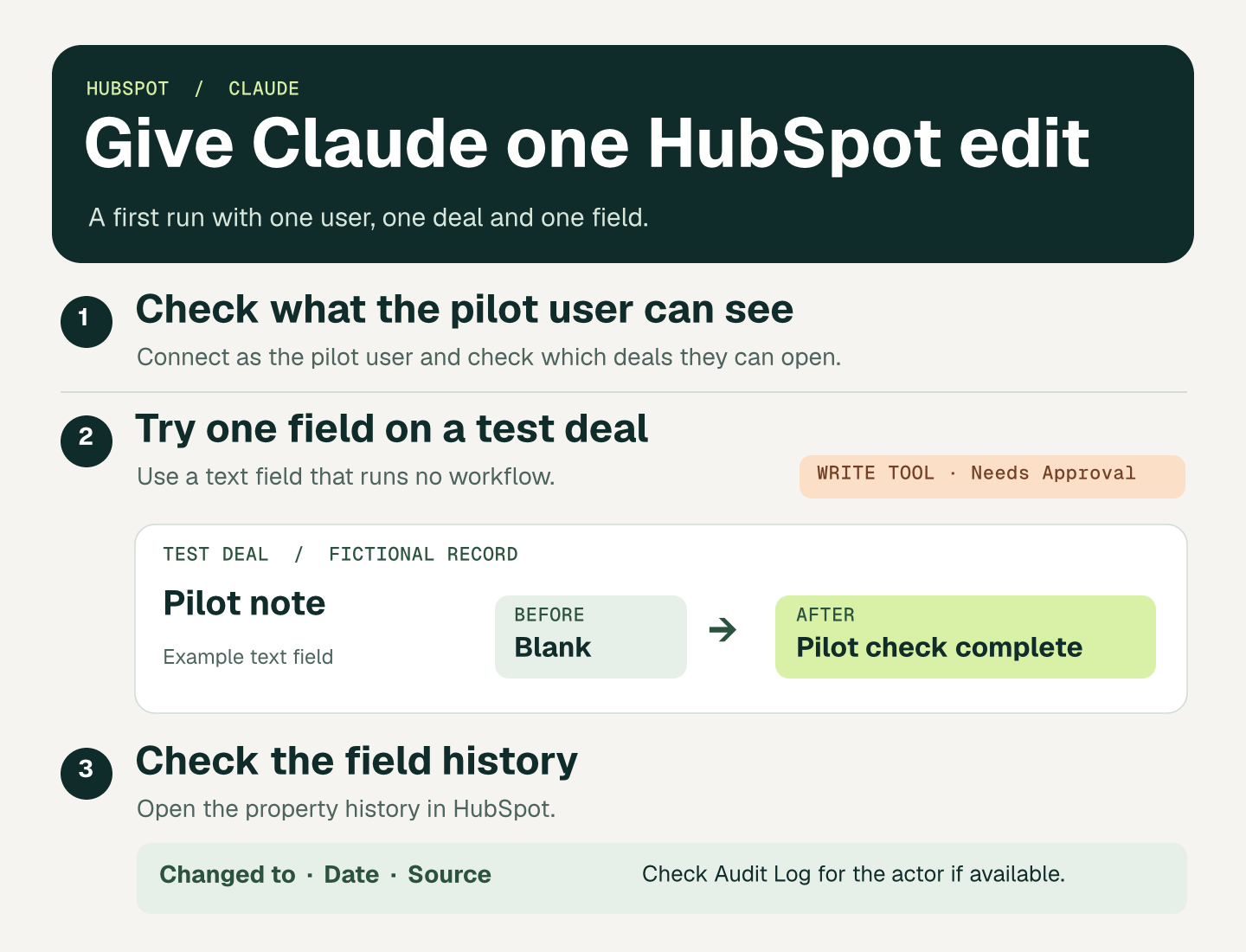
- Start with deal lookups. In Claude’s HubSpot connector settings, set the write tools to Blocked. If your organization manages the setting, ask its owner to set it. Have the pilot rep look up a deal they can see in HubSpot and compare the result with the deal record.
- Change one text field. When the lookup works, set the connector’s write tools to Needs Approval for the test. Ask Claude to set Pilot note on the test deal to
Pilot check complete. Check the deal and value in Claude’s approval prompt before confirming the edit. - Check the property history. In HubSpot, open the test deal. In the left sidebar, select Actions, then View property history. Find Pilot note and check the changed value, date and source.
Can the connector edit a deal the rep cannot edit in HubSpot?
The connector follows the rep’s existing HubSpot permissions. Its tool settings can further limit what the rep can do. A HubSpot Super Admin controls the connector’s approved data permissions and who can install it.
If your team needs to know who made the edit, a Super Admin can check the HubSpot Audit Log for the user and Claude connector attribution.