
Workflow recovery
How do you retry a timed-out n8n CRM write?
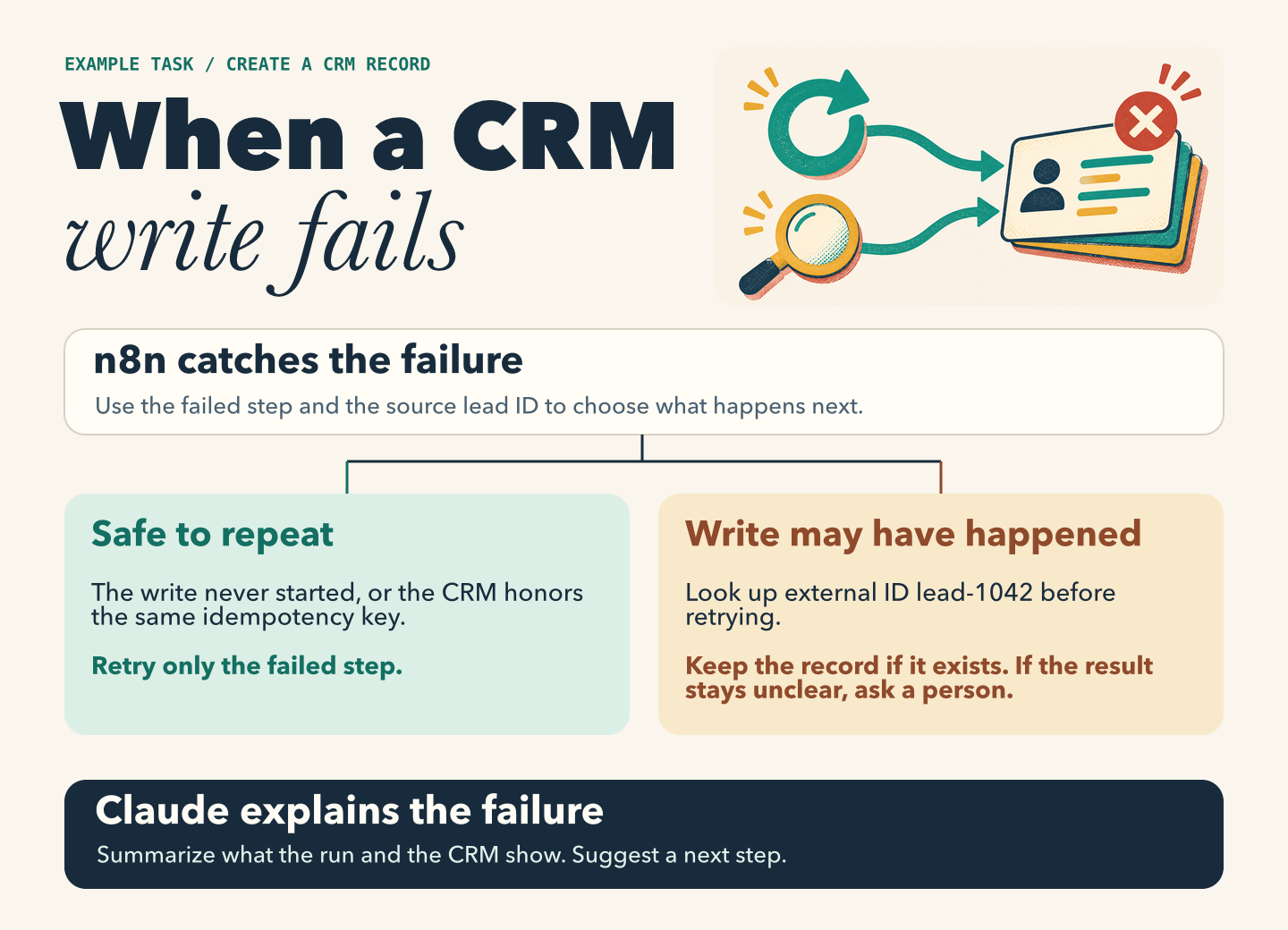
Look up the record using its source ID before you retry. If the record exists, keep it. If you still can’t tell whether the write landed, ask a person to check the run.
Handle one failed CRM write
- Give the record a source ID. Before the CRM write, keep a stable ID from the intake system. Store it in a unique CRM field so a second attempt can refer to the same record.
- Look up the record when the write times out. In n8n, start the handler with Error Trigger, then select it under Settings → Error workflow on the intake workflow. Use the source ID from the saved run or your intake log to look up the CRM record.
- Choose the next step from the lookup. If the expected record exists, keep its CRM ID and close the retry. If the write needs repeating, use a destination operation that creates or updates the record by the same unique ID. If the lookup fails or you can’t verify a safe repeat, send the run to a person.
HubSpot contact example
Suppose n8n sends lead lead-1042 to HubSpot and gets a timeout. The contact may already exist. Use a custom unique source ID for the contact lookup. HubSpot’s contact upsert also accepts a custom unique ID and updates the matching record if it exists. Check any later actions, such as sending a confirmation email, separately before repeating them.
What should the assistant do when an n8n CRM write fails?
Give the assistant the failed step, the source ID, and the result of the CRM lookup. Ask it to summarize what happened and suggest the next step. Keep the retry decision in the workflow.
With Claude, pass those three fields from the error handler. Leave customer messages and raw logs out of the summary prompt.